1. Add your website.
Open Mockup Builder. It is free to use, with no sign-up. You can begin with a public website, screenshots you already have, or the built-in sample.
Capture a public URL
Paste the website address into Website address and choose Create mockup. The editor opens and captures desktop, tablet and mobile screenshots. Inside the editor, use Content, enter an address and choose Capture to replace the shared capture.
Use your own screenshots
Choose Upload screenshots on the start page, or select a Desktop, Tablet or Mobile screenshot tile under Content. PNG, JPG and WebP are useful choices. Check the assigned tiles after uploading; you can replace each screen individually.
Full-page screenshots give you more room to adjust the visible part of a page. For a first try, choose Try a sample site instead. The examples in this guide use the built-in Harbor Coffee sample, not a customer project.
2. Frame your screens.
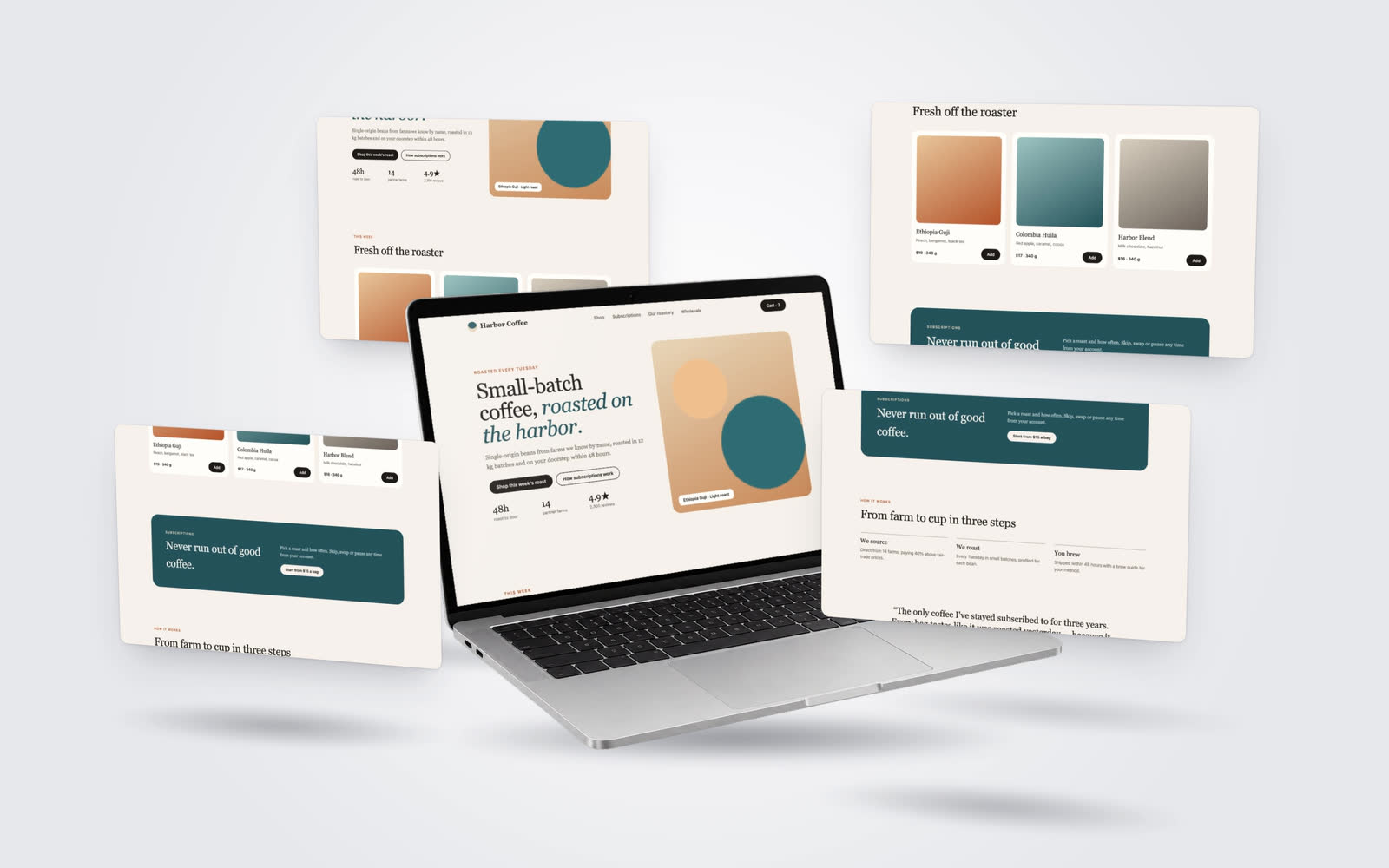
Open Layout and choose a device, Studio or 3D layout. Start with a layout close to the presentation you need, then adjust its screens.
- Choose the page area. Click a screen and drag or scroll inside it to move that screen's page content. In multi-screen layouts, each screen can show a different position.
- Set the canvas. Use Canvas size in the top bar for a landscape, square, portrait or social-sized composition.
- Adjust the scene. Layout-specific controls let you change the arrangement or camera. The controls available depend on the selected layout.
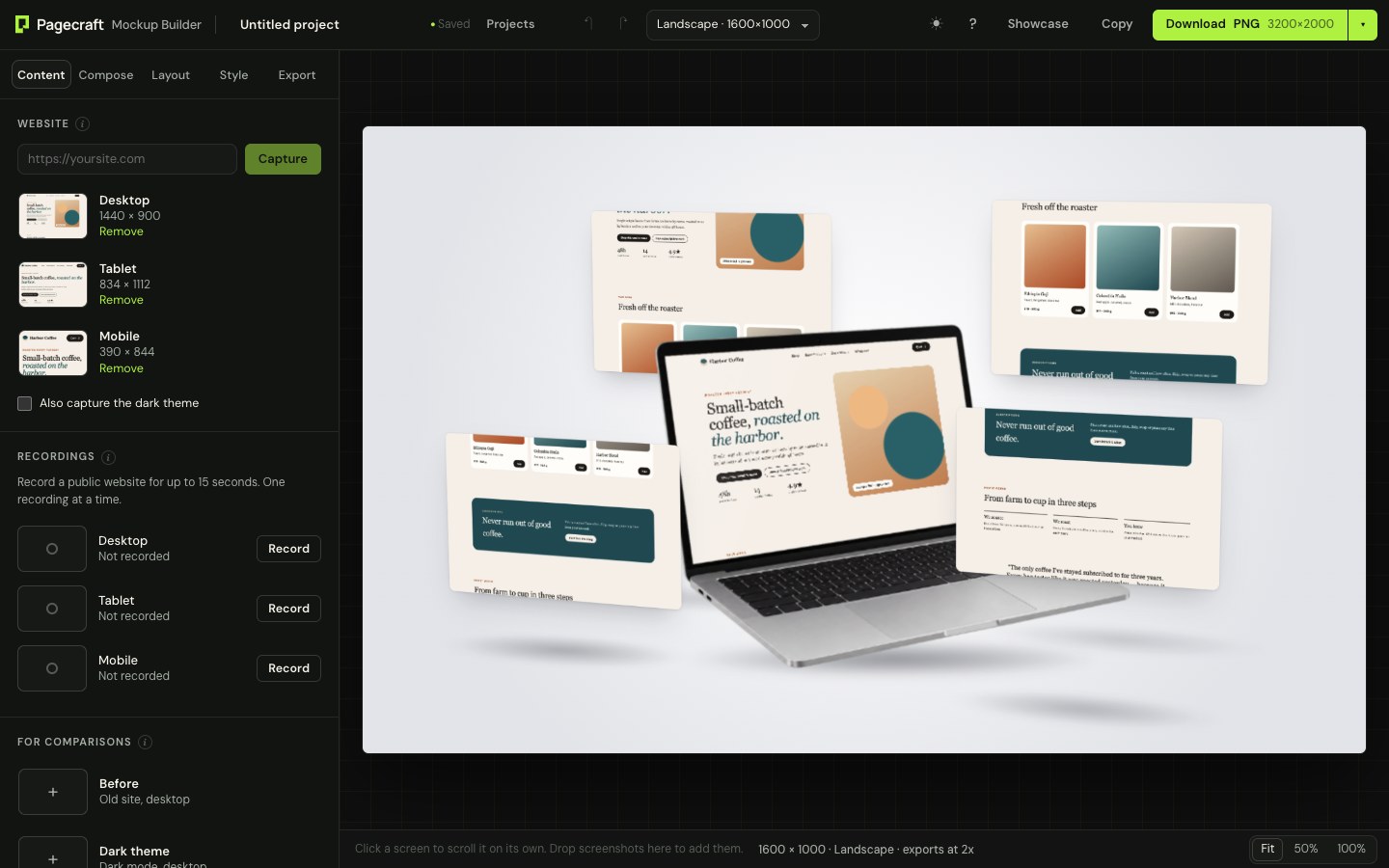
For more control, Compose lets you select individual screens, use a different page or image, crop it, and add or remove devices and cards. You can keep the first mockup simple and return to these controls later.
3. Make it yours.
Use Style to adjust the background, device appearance, shadows and other options offered by your layout. Keep enough contrast between the website and its background so the work stays easy to see.
Under Content, enable Show headline and caption if your presentation needs text. You can also upload a logo or add callouts. Before exporting, check that the important part of each screenshot is visible and that your text fits the canvas.
4. Export your mockup.
Download a still image
Open More export options, next to the Download button. Choose PNG, JPG or WebP, then choose 1x or 2x. Use the main Download button to export the current canvas.
PNG is useful when you need transparency. JPG does not retain transparency. JPG and WebP have quality controls in the Export tab.
Make a scrolling video or GIF
Open Export, choose MP4 or GIF, and adjust the motion and duration. Use Preview motion to check the movement, then choose Download video or Download GIF.
To capture interaction with a public website rather than animate a still screenshot, use Recordings under Content. Choose Record for a screen, interact with the preview, then stop. A saved recording is used for that screen's video export; still-image exports use screenshots.
Use 1x or 2x for images. The public image export is capped at 2x, even if 3x appears in the controls. Public video rendering uses 1x, and video duration is limited to 15 seconds. Website recording is also limited to 15 seconds, with one recording at a time.
5. Keep your project.
Name your work using Project name in the top bar. Projects save in the browser you are using. The start page's Continue where you left off action reopens your saved work when it is available.
For a portable backup, open Projects and choose Export this project. Keep the downloaded .mockup.json file. Use Import a project file to open it as a copy later or in another browser.
Clearing browser data can remove your saved projects and presets. A downloaded image or video is the finished output; the project file is the copy you keep for later editing.
Common questions.
Why will a website not capture?
The capture tool needs a public HTTP or HTTPS website. Localhost, private network addresses and private destinations are blocked. Some websites refuse automated capture, require access, or take too long to load. Open the website yourself and upload screenshots you have permission to use as an alternative.
Can I open a menu before capturing a page?
Yes. In Compose, select a screen, enter its Page URL and choose Prepare capture. Interact with the preview, then choose Capture this view or Capture full page. The preview expires after three minutes and does not bypass access restrictions.
Where are my files and projects stored?
Projects, brand kits, templates and saved recordings are stored in this browser. Website capture and export processing uses temporary server-side files. Download a project file when you need a portable copy; browser saving is not automatic cloud sync.
Do I need the Pagecraft website builder?
No. Mockup Builder is available independently at mockup.itspagecraft.com. The Pagecraft visual website builder shown on the main landing page is a separate product and is marked Coming soon.
Put your website in the frame.
Start with your own URL or try the sample, then follow the five steps above.
Open Mockup Builder